
WordPress and Elementor
Building a WordPress site with a page builder is much easier. One alternative to the standard Gutenberg block builder is Elementor. You can download Elementor for free from the WordPress plugin library. With Elementor, you can easily build content without programming skills using drag-and-drop blocks. At the same time, you will see your page almost in the same form as it will be when it is published.
The basic version of Elementor does not include the Elementor’s Form Builder. The form builder is a feature of Elementor Pro. The Elementor Pro has many more functionalities overall, therefore Elementor Pro is often installed on websites on top of the basic Elementor. One good reason to get Elementor Pro is precisely its easy-to-use element for building the forms. With this element, you can add, for example, a contact form to your site very quickly and easily. It is also easy to change the fields and layout of the form.
There is plenty of material to get started with Elementor on their support page: Elementor help.
Below I explain how to add the form to your page. There is also plenty of information on adding form functions and modifying the appearance of the form on the same Elementor support pages.
At the same time, it is important to consider the security of the form. Spam bots find your form very quickly after publishing, so it is worth protecting it from spamming by bots.
Installing an Elementor form
- Open the editable page with the “Edit with Elementor” option.
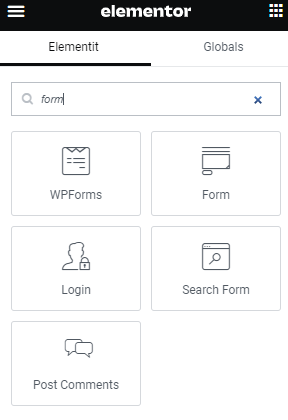
- The sidebar on the left side of the view contains elements that can be dropped onto the page. If you are using the Pro version, the “Pro” elements can be found right below the “Basic” elements. The easiest way is to write the word “form” in the top search tool.

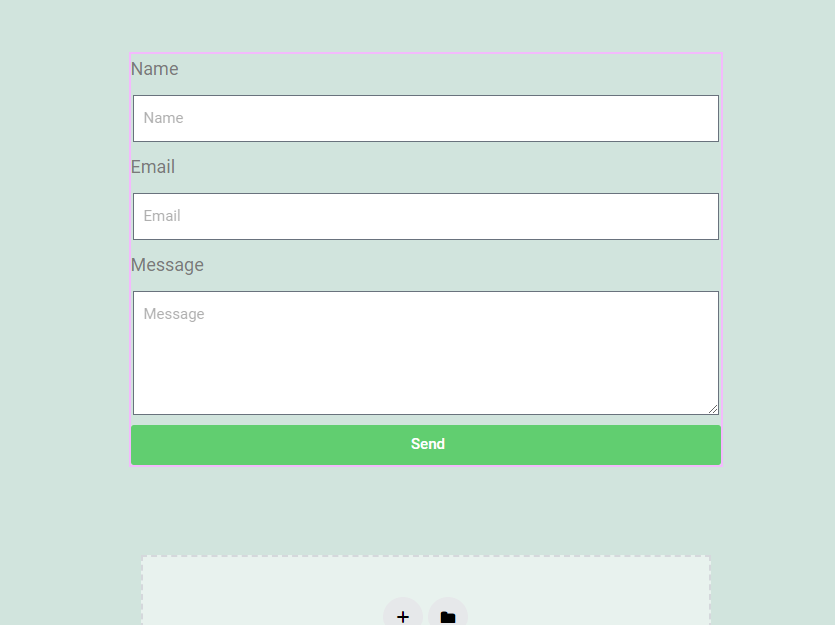
- Drag and drop the “Form” element on your page to “Drag widget here”. When dropped, the element transforms into a draft form.

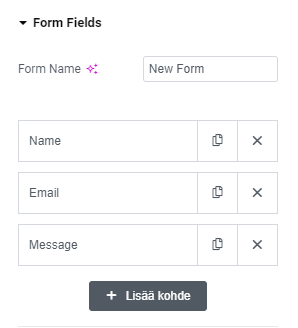
- You can select more fields and change the current fields in the “Form Fields” section of the left sidebar. Add a field by pressing “+ Add item”.

- Be sure to protect your form. More on this below.
You can see more examples of form editing in the video: How to Use Elementor’s Form Builder.
Standard protection methods of the Elementor form
You can protect the form in Elementor Pro with the standard security measures found in Pro.
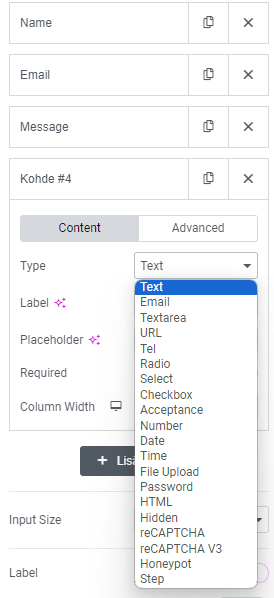
- In the “Form Fields” section, click “+ Add item”. After that, select “Honeypot” from the drop-down menu.

- The field becomes invisible on the form itself. Remember to save the page by pressing “Update” at the bottom of the page. Nothing else is required.
A honeypot is usually a moderately good protection method. However, the bot test tool on this website was tested and it sent easily mail through a honeypot-protected Elementor Pro form. The standard security measures of the Elementor Pro form also include Google’s Captcha. Installing Google Captcha is not covered in this article, as it requires registration with Google. Google also has its own requirements for the use of Captcha and in some cases separate sensitivity settings.
Protecting your Elementor form more efficiently with a plugin
The easiest and most effective way to secure your Elementor Pro form is to use dxw3 Bot Spam Block plugin. The plugin is specifically developed to block spam sent by bots. The only setting for the plugin is a license key. Otherwise, the plugin works lightly, efficiently and automatically without unnecessary settings. It also does not hinder the actual user of the form, because the user does not have to solve additional tasks or puzzles.