WooCommerce Product Filtering at 60,000+ Products: Why Architecture Matters

WooCommerce product filtering can feel simple when a store has a few hundred products. Add a category filter, a few attributes, maybe a price filter, and the job looks done.

But the situation changes when the store grows.

A WooCommerce shop with tens of thousands of products is different. Every category, attribute, tag, stock value, product image, and sorting option adds more data to process. A product filter that feels fast on a small catalog can become slow when the store has 10,000, 30,000, or 60,000+ products.

That is the problem Quick Search Pro was built to solve.

Quick Search Pro is a high-performance WooCommerce product filtering plugin designed for large product catalogs. Instead of relying only on normal WordPress and WooCommerce queries for every filter action, it uses optimized product index tables and a fast request path designed specifically for filtering.

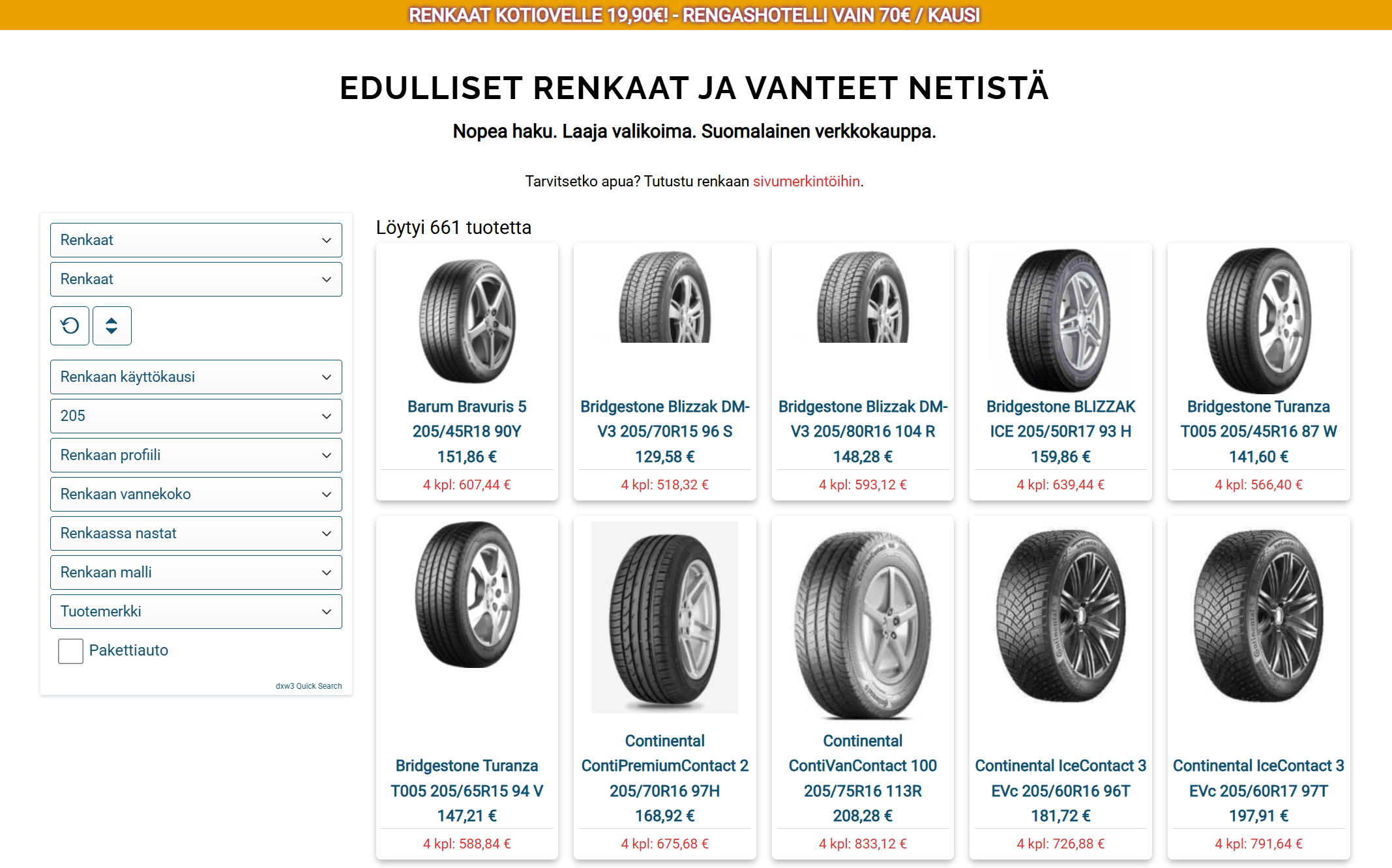
In the current demo shop, Quick Search Pro is tested with more than 60,000 WooCommerce products.

Quick Search Pro WooCommerce product filter demo showing over 60000 products
Quick Search Pro demo store with more than 60,000 WooCommerce products.

Why normal WooCommerce filters can become slow

Many WooCommerce filter plugins describe themselves as Ajax filters. Ajax can make the shopping experience feel smoother because the whole page does not need to reload after every filter change.

But Ajax alone does not make a filter fast.

If the server still needs to run heavy WordPress, WooCommerce, taxonomy, meta, and theme logic for every filtering request, the customer can still end up waiting. The browser may stay on the same page, but the backend query can still be slow.

This becomes especially visible in large catalogs where the customer can filter by many different values, such as:

  • Product categories
  • Subcategories
  • Product attributes
  • Product tags
  • Brands
  • Sizes
  • Sorting options

For small shops, this may not matter much. For large WooCommerce stores, the filtering architecture becomes important.

Quick Search Pro is built differently

Quick Search Pro is not just another frontend Ajax layer.

It creates optimized product index data for filtering. This allows the plugin to search and narrow product results without depending on the full normal WooCommerce query path for every click.

The plugin is designed around three main ideas:

  1. Index the data needed for filtering
  2. Use a fast request path when the server supports it
  3. Fallback automatically when needed

This makes the plugin suitable for stores where filtering speed is not just a nice extra, but a core part of the shopping experience.

Tested with a 60,000+ product WooCommerce demo store

The current Quick Search Pro demo shop contains more than 60,000 products.

That matters because many filtering solutions look fast in small demos. A demo with a few hundred or a few thousand products does not always reveal the real performance limits.

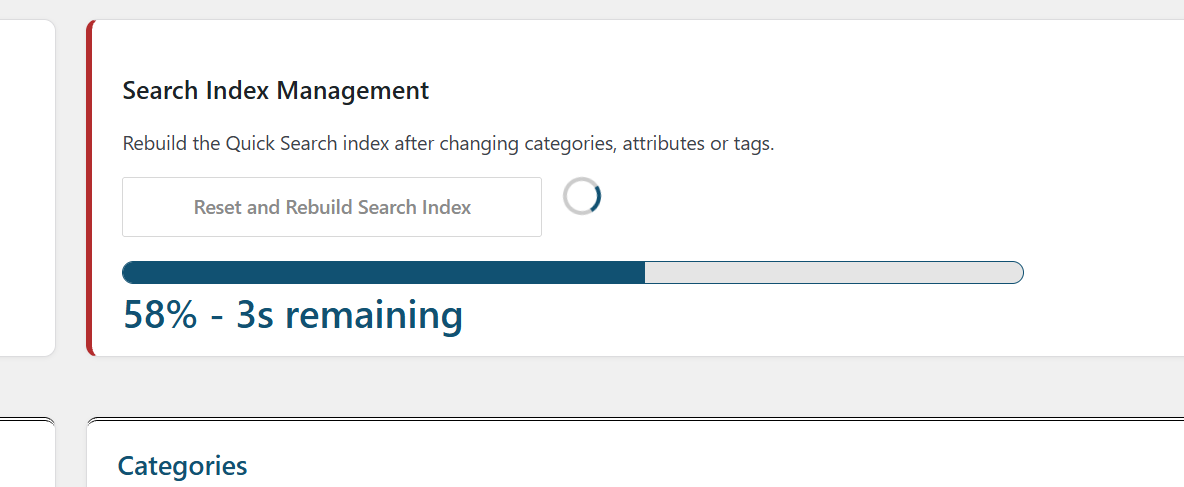
In the Quick Search Pro demo environment, rebuilding the product filtering index for around 60,000 products takes about 10 seconds.

Quick Search Pro index rebuild for 60000 WooCommerce products
Quick Search Pro can rebuild the demo product index for around 60,000 products in about 10 seconds.

The full index rebuild is mainly needed when product categories, attributes, or tags change. Normal product updates can be handled dynamically, so the store does not need a full manual rebuild after every small product change.

That is important for real WooCommerce stores where prices, stock quantities, and imported product data may change regularly.

Demo performance examples

The goal of Quick Search Pro is not only to work on a large store, but to keep the filtering experience fast.

In the current demo shop, most filter actions return in well under one second. Even broad result sets are designed to remain fast.

For example, selecting the rims category in the demo shop searches through a large result set of around 30,000 matching products. In testing, this type of broad category action has returned in roughly 500ms.

WooCommerce rims category filtered with around 30000 products using Quick Search Pro
Broad category filtering remains fast even when the result set contains around 30,000 products.

Typical demo results:

TestDemo result
Demo catalog size60,000+ products
Full index rebuildAbout 10 seconds
Broad rims category result setAround 30,000 products
Broad category filtering testAround 500ms
Normal filtering actionsSub-second in the demo shop
Normal product updatesDynamic index updates

Performance always depends on the server, catalog structure, hosting environment, active plugins, and selected filters. But the important point is that Quick Search Pro is designed around a filtering architecture that can handle large catalogs efficiently.

Browser Network timing showing Quick Search Pro WooCommerce filter response time
Real browser Network timing from the demo shop shows filter responses returning in milliseconds.

Lightning Mode and Ajax fallback

Quick Search Pro includes a high-speed request path called Lightning Mode.

Lightning Mode is optimized for performance. It is designed to reduce overhead and return product filtering results quickly, especially in large stores where every extra layer can slow down the customer experience.

This matters especially on weaker mobile networks.

A slow product filter is not only a server problem. It becomes a user experience problem. On mobile, every extra script, large response, and delayed request can make the shop feel heavier.

Quick Search Pro is designed to keep the frontend lightweight and let the optimized backend filtering logic do the heavy work.

But not every server environment is identical. Some hosting setups, security rules, cache configurations, or server restrictions may not allow the fastest request path to work reliably.

That is why Quick Search Pro can automatically use a slightly slower WordPress Ajax path when needed.

The goal is simple: use the fastest available mode when possible, but keep the plugin usable across different WordPress hosting environments.

Lightweight frontend performance

Some product filter plugins load a lot of frontend code. That can make the page heavier before the customer even starts filtering.

Quick Search Pro takes a different approach.

The frontend is kept lightweight because the main filtering work is handled by optimized server-side data structures. The browser does not need to load a large filtering application just to let customers narrow down products.

This is especially important for:

  • Mobile shoppers
  • Stores with large category pages
  • Stores with many product attributes
  • Stores where speed affects conversion
  • Shops where customers compare many filter combinations

In large WooCommerce stores, performance is not only about the first page load. The filtering experience after the customer starts interacting with the shop is just as important.

Why indexing matters

Indexing is the part that makes fast filtering possible.

Instead of asking WooCommerce to calculate everything from the full product database on every request, Quick Search Pro prepares the data needed for filtering in advance.

This is especially useful when products have many attributes, categories, and tags.

In internal comparison testing, a well-known premium filtering plugin could not complete indexing of the same 60,000-product demo catalog under the available memory limit. Quick Search Pro rebuilt the demo index in about 10 seconds in the same environment.

That is the difference between a filter that is added on top of WooCommerce and a filter architecture designed for large catalogs from the beginning.

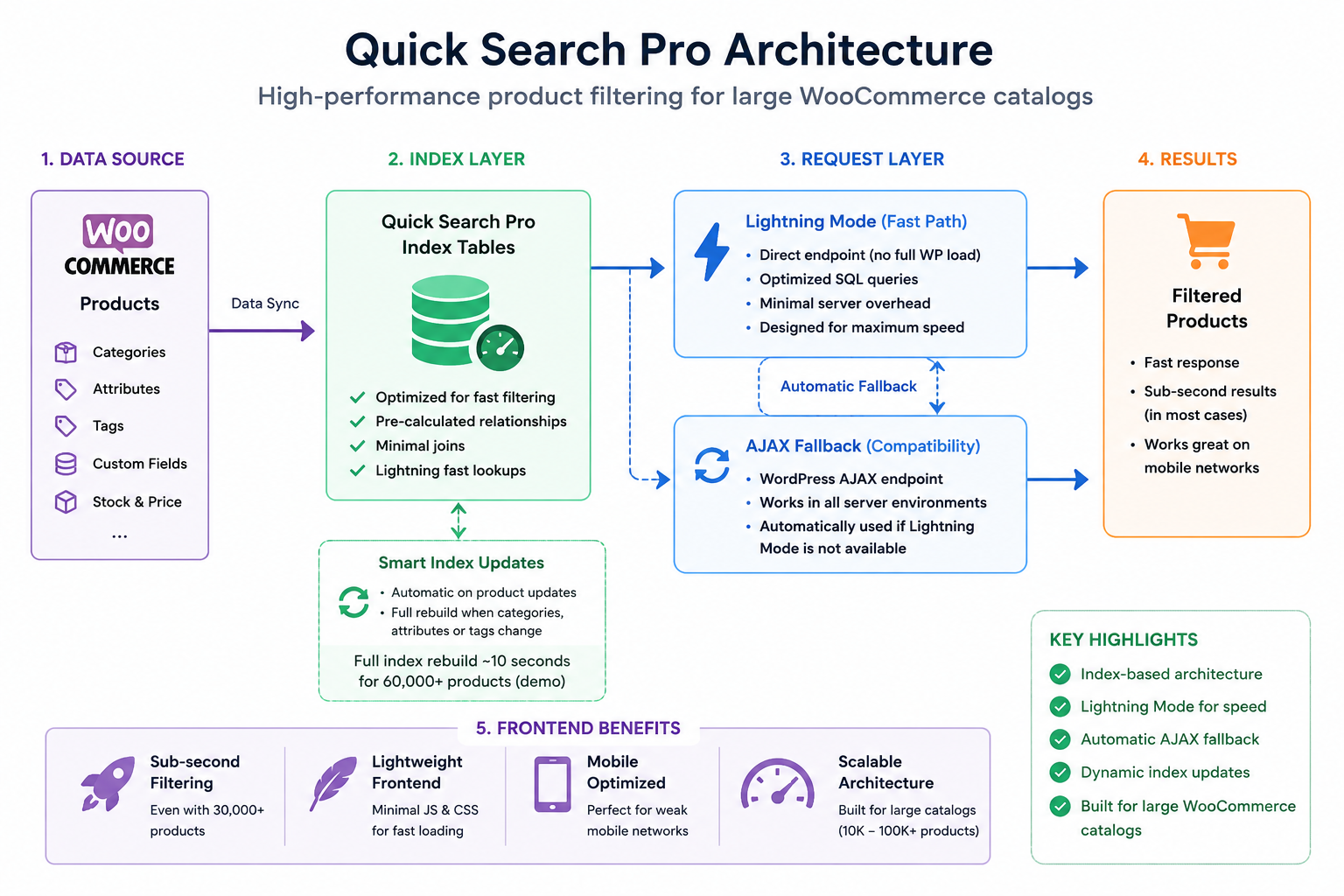
Quick Search Pro architecture using index tables, Lightning Mode, Ajax fallback, and lightweight WooCommerce filtering
Quick Search Pro uses optimized product index tables, Lightning Mode, and automatic Ajax fallback to keep WooCommerce filtering fast on large catalogs.

Who Quick Search Pro is built for

Quick Search Pro is especially suitable for WooCommerce stores where product filtering speed matters.

Typical use cases include:

  • Large WooCommerce catalogs
  • Tire and rim stores
  • Spare part stores
  • B2B product catalogs
  • Technical product catalogs
  • Import-heavy WooCommerce stores
  • Stores with many product attributes
  • Stores where customers need to narrow down products quickly

It is not built mainly for tiny stores with a few products. A small store can use many different filter plugins successfully.

Quick Search Pro is built for the point where normal filtering starts to feel slow, heavy, or unreliable.

Ajax is useful, but architecture is more important

Ajax filtering is now common in WooCommerce. Many plugins offer it.

But Ajax is only the request method. It does not automatically solve the deeper performance problem.

The real question is:

What happens after the filter request reaches the server?

If every click still depends on heavy WordPress and WooCommerce queries, Ajax can only hide part of the problem. The customer may avoid a full page reload, but they may still wait for the results.

Quick Search Pro focuses on the deeper layer: the data structure and request path behind the filter.

That is why the plugin can be fast even when the product catalog is large.

Designed for real WooCommerce stores

Large WooCommerce stores are rarely simple.

They often have:

  • Product imports
  • Large attribute sets
  • Many categories
  • Regular stock updates
  • Price updates
  • Product image handling
  • Cache plugins
  • Mobile traffic
  • Different hosting environments

Quick Search Pro is built with this reality in mind.

The plugin supports a fast Lightning Mode request path for speed, but it can also fall back to a WordPress Ajax path when the server environment requires it. This gives store owners and developers a practical balance between performance and compatibility.

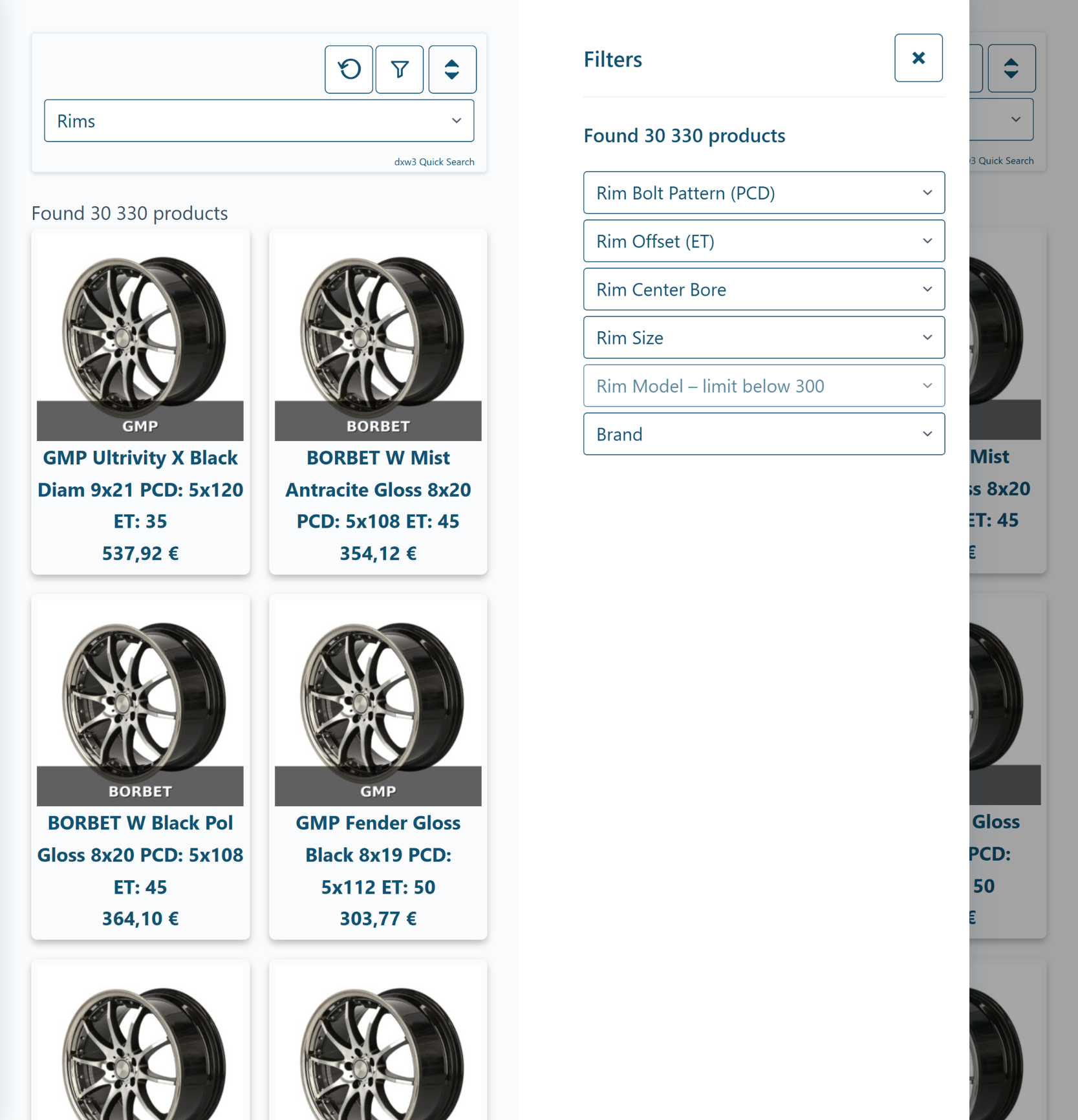
Mobile WooCommerce product filtering with Quick Search Pro
Lightweight filtering matters especially on mobile devices and weaker network connections.

Try the live demo

The best way to understand Quick Search Pro is to try it on a large catalog.

The demo shop is designed to show how the plugin behaves with more than 60,000 WooCommerce products, including broad categories, attributes, tags, sorting, and pagination.

Try the demo and test different filter combinations.

Get Quick Search Pro

Quick Search Pro is built for WooCommerce stores where filtering performance matters.

If your store has a large catalog, many product attributes, or slow filtering with your current setup, Quick Search Pro is designed to solve that problem with a faster architecture.

For more information, please contact here.

How to install a secure Elementor form on my website?

WordPress and Elementor

Building a WordPress site with a page builder is much easier. One alternative to the standard Gutenberg block builder is Elementor. You can download Elementor for free from the WordPress plugin library. With Elementor, you can easily build content without programming skills using drag-and-drop blocks. At the same time, you will see your page almost in the same form as it will be when it is published.

The basic version of Elementor does not include the Elementor’s Form Builder. The form builder is a feature of Elementor Pro. The Elementor Pro has many more functionalities overall, therefore Elementor Pro is often installed on websites on top of the basic Elementor. One good reason to get Elementor Pro is precisely its easy-to-use element for building the forms. With this element, you can add, for example, a contact form to your site very quickly and easily. It is also easy to change the fields and layout of the form.

There is plenty of material to get started with Elementor on their support page: Elementor help.

Below I explain how to add the form to your page. There is also plenty of information on adding form functions and modifying the appearance of the form on the same Elementor support pages.

At the same time, it is important to consider the security of the form. Spam bots find your form very quickly after publishing, so it is worth protecting it from spamming by bots.

Installing an Elementor form

  1. Open the editable page with the “Edit with Elementor” option.
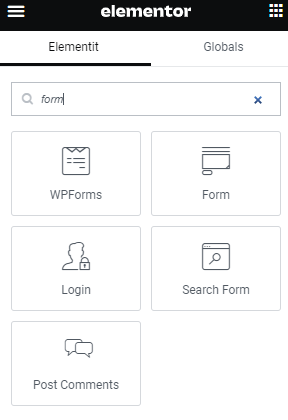
  2. The sidebar on the left side of the view contains elements that can be dropped onto the page. If you are using the Pro version, the “Pro” elements can be found right below the “Basic” elements. The easiest way is to write the word “form” in the top search tool.
    Elementor search for form


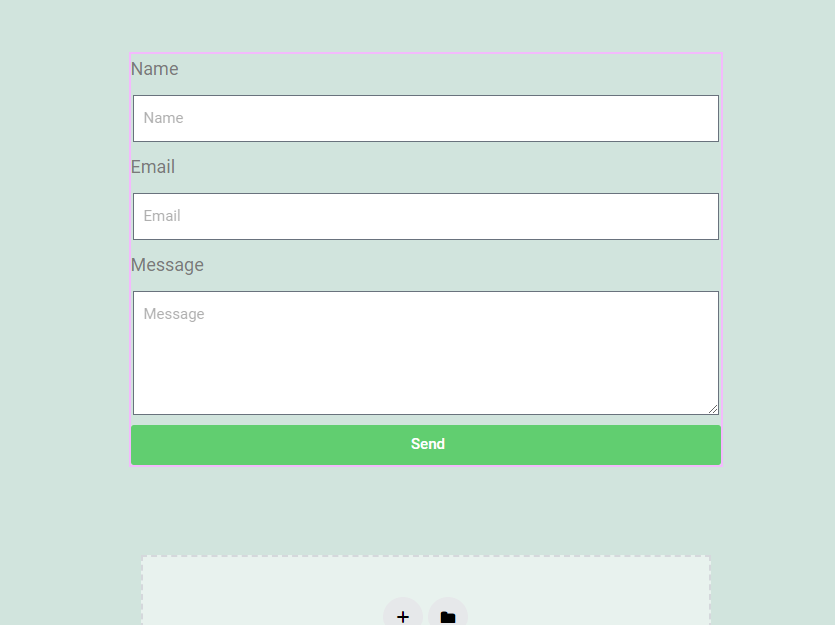
  3. Drag and drop the “Form” element on your page to “Drag widget here”. When dropped, the element transforms into a draft form.
    Elementor contact form draft


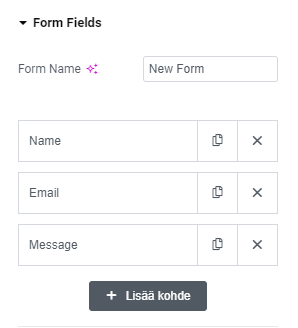
  4. You can select more fields and change the current fields in the “Form Fields” section of the left sidebar. Add a field by pressing “+ Add item”.
    Elementor draft form fields


  5. Be sure to protect your form. More on this below.

You can see more examples of form editing in the video: How to Use Elementor’s Form Builder.

Standard protection methods of the Elementor form

You can protect the form in Elementor Pro with the standard security measures found in Pro.

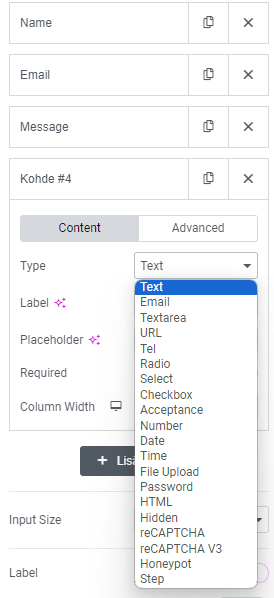
  1. In the “Form Fields” section, click “+ Add item”. After that, select “Honeypot” from the drop-down menu.
    Elementor form add field


  2. The field becomes invisible on the form itself. Remember to save the page by pressing “Update” at the bottom of the page. Nothing else is required.

A honeypot is usually a moderately good protection method. However, the bot test tool on this website was tested and it sent easily mail through a honeypot-protected Elementor Pro form. The standard security measures of the Elementor Pro form also include Google’s Captcha. Installing Google Captcha is not covered in this article, as it requires registration with Google. Google also has its own requirements for the use of Captcha and in some cases separate sensitivity settings.

Protecting your Elementor form more efficiently with a plugin

The easiest and most effective way to secure your Elementor Pro form is to use dxw3 Bot Spam Block plugin. The plugin is specifically developed to block spam sent by bots. The only setting for the plugin is a license key. Otherwise, the plugin works lightly, efficiently and automatically without unnecessary settings. It also does not hinder the actual user of the form, because the user does not have to solve additional tasks or puzzles.

How to install a Contact Form 7 form on my WordPress site?

Follow these instructions to install the Contact Form 7 form on your web page

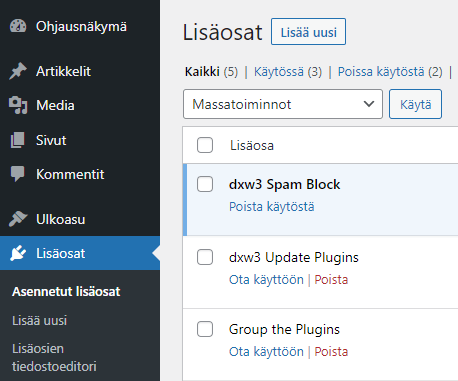
  1. Open the WordPress admin view under Plugins – Installed Plugins. Click “Add new”.
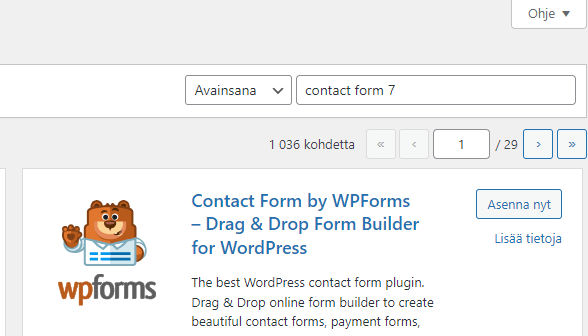
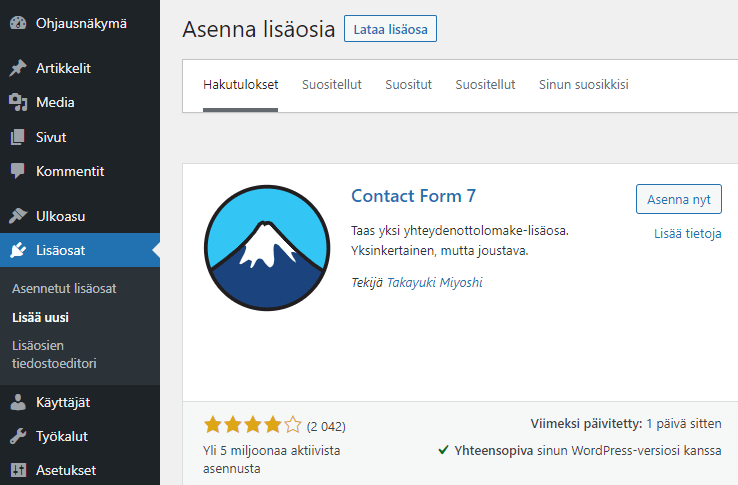
  2. Enter “Contact Form 7” in the search box in the upper right corner and click Contact Form 7 – “Install now”. After that, click on the same button “Activate”.

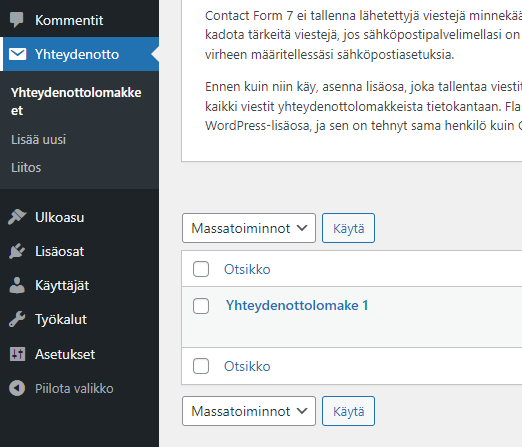
  3. After that, click on “Contact” in the admin menu. You can see only one form at this time. The form usually works with its default settings, but you can edit the settings by clicking on the name of the contact form. By default, form submissions arrive in the site administrator’s email box. You can also see the default fields of the form by clicking on the name of the form “Contact form 1”.
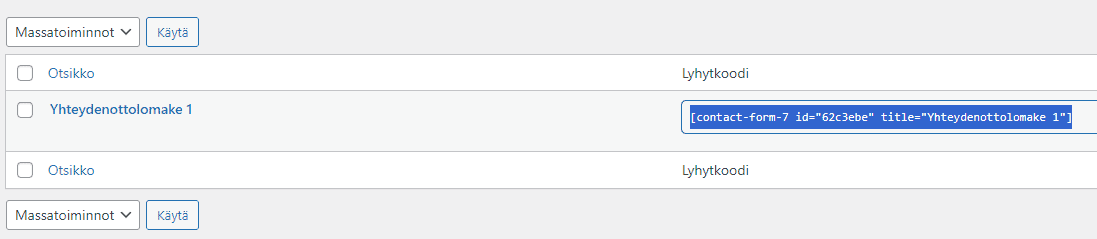
  4. Click on the code in square brackets “Shortcode”. Copy the code including square brackets to the clipboard, e.g. Ctrl+C/Command-C.
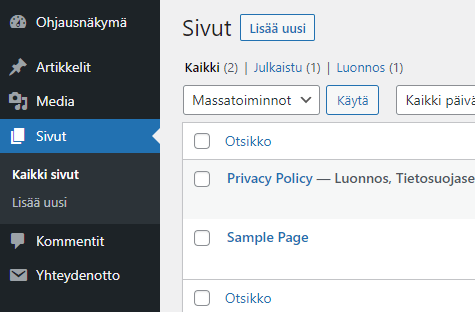
  5. After this, the shortcode must be placed in the desired place where the form is to be placed. If you want to place the form on a specific page, click “Pages” in the admin menu.
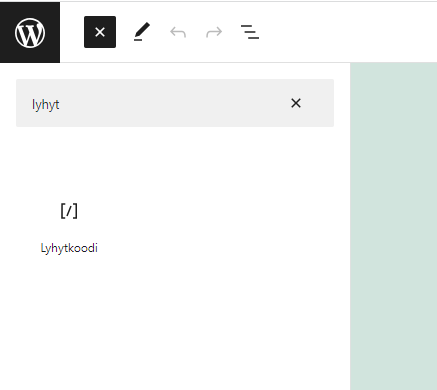
  6. Next, either add a new page or click on the title of an existing page. In page editing mode, click the plus sign in the upper left corner to add a block. Type “short” in the search box.
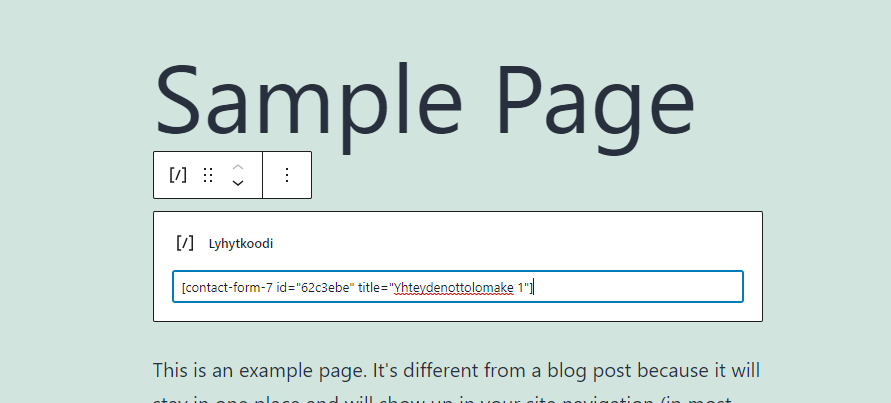
  7. Drag the block to the desired position on the page. Set the code copied to your clipboard as the value of the block. After that, save the page from the upper right corner “Update”.

Everything is ready. Your contact form will now send you contact requests entered via your form on your site. Your site’s e-mail must of course be set up correctly. Try out your form and if you do not receive the message entered through the form to your admin email, there may be a problem with the email settings. In this case, you should test the emailing by trying to reset your own password. If you do not receive a message for resetting the password, your email settings need to be fixed. However, if you can receive a password reset message, there likely is a problem with your form.

Important spam settings

When your form is set up correctly, you will receive the test messages in your email. Consecutively, however, it won’t be long before spam bots find your form. You should immediately block the reception of spam mail with additional settings. Contact Form 7 can connect Google’s CAPTCHA/reCAPTCHA, the purpose of which is to prevent spam. However, CAPTCHA can be tricky to set. Furthermore, it may add extra tasks for your visitors before they can submit their messages. In addition, the new CAPTCHA requires some admin settings, and after all the trouble, you may block some genuine submissions or allow bots to submit the form.

The easiest way to stop the bot spam is to set up on your site the Bot Spam Block plugin. The plugin works automatically after activation. You only have to set the license code for the plugin. Your visitors won’t notice the plugin as it works in the background. In addition, they won’t have to complete extra image tasks or solve math equations. Yet the plugin prevents bot spam from being sent via your form.

How to prevent form bot spam?

The amount of traffic from malicious bots compared to all traffic on the internet has grown significantly in recent years. According to statistics, in 2016 the amount of traffic was still less than 20%, but in 2022 it had already grown to more than 30% (Statista). Because of this, the amount of spam sent via website forms is also increasing. Protect your forms before this becomes a problem.

Contents

Harm caused by spam

Your website’s form spam is detrimental in many ways.

  • you have to sift through a large number of messages to find the genuine ones and all of your response times slow down
  • your site’s performance slows down, which leads to both lower search engine visibility and you may have to upgrade your server to a more efficient one
  • bots may sign up for your email marketing list, leading to unnecessary emailing in your campaigns
  • you may receive malicious links, become a victim of phishing, or your site may be hijacked
  • if you analyze visitor data e.g. for commercial purposes, your data is no longer correct

The longer the problem is allowed to continue, the bigger the problems and risks become.

Bot spam and spam sent by humans

Most spam can be prevented. Spam is generally divided in junk mail sent by humans or bots.

Spam sent by people is initiated by either individual actors or commercial companies of several actors whose task is to send a specific message via forms. The behavior between genuine customers and spammers is similar. Therefore, separating these groups from each other is challenging. This guide focuses on malicious bot spam, but there is also a brief advice below on how to prevent human spam on your WordPress site.

Spam sent by bots practically means a computer program that has been developed for the purpose. A well-designed bot can send an incredible amount of messages. The bot can open links and fill in forms automatically. If there is no blocking on the form, this is very easy. Bots have evolved significantly recently, and a large part of bot spam prevention methods can be bypassed today. Therefore, when designing websites, it is necessary to take into account that it is possible to automatically send a lot of spam via an unprotected form placed on the site.

Spam sent by people is almost impossible to completely prevent. Spam from malicious bots, on the other hand, can be prevented using techniques that the bot does not yet recognize. However, this is a constant race between spammers and spam block developers.

Goals of the bots

The reassuring thing about this race is that the aim of most malicious bots is merely to market a specific message. This may be a commercial advertisement or other information, which is spread to be visible in as many places as possible. Your site will probably be able to continue operating. It’s just being abused to spread this message.

A smaller number of bots aim to damage your site or fish for data. However, there are some bots whose purpose is to harm your site and hinder your business. These bots may place so much load on your site that your site can no longer handle it and the whole site crashes. Another group of malicious bots, on the other hand, may try to find weaknesses in your site and possibly fish for various types of information that can be used in criminal activities.

Frequently used ways to prevent form spam

It is possible to try some easy-to-install ways to prevent harmful bot spam. The customer’s user experience is very important in your choices. Due to the shortsightedness of the customers and the user experience aspects, it is not recommended to install extra tasks on the site for the customer to solve. Your website’s forms should always work quickly and easily for customers. The same form, on the other hand, should be very difficult for a bot to use. Some commonly used spam blocking methods are mentioned below.

Ghosting

Ghosting is a very effective and so far less frequently used method to block spam. dxw3 Bot Spam Block – plugin uses this method. In ghosting, the elements of the form on the website are ghosted, i.e. they practically disappear. Since bots can’t find elements, they can’t send spam. However, the form is normally visible to the actual user. The advantage of this method is its ease of use. Once the protection is turned on, no other settings are required. On the website, the visitor does not have to solve additional tasks or press buttons, but the visitor uses the form normally.

Honeypot

Honeypot is currently one of the most popular and effective means of protection against form-sent spam. As the name suggests, the idea of ​​the honeypot is based on its ability to lure a bot into a trap. At its simplest, the form’s programming code includes a field to be filled in, which is visually hidden from the customer. The bot reads the code, but the customer sees the form visually. So the customer doesn’t fill in anything in the field, but the bot thinks it needs to be filled out. If there is information in the field, the submission of the form will be rejected. Honeypot with its different versions is still a reasonably good way to prevent spam. However, it has become more and more vulnerable because nowadays bots read the code (CSS/JavaScript) used to hide it and know how to react accordingly.

Speed ​​limit

Another promising way to stop bot form submission is to use rate limiting. The power of the bot is based on its speed. The bot tries to submit forms very quickly and efficiently. However, if sending the form or filling in the fields too quickly, is blocked, the bot’s form submission can be blocked. The problem with this method might be the browser’s “autofill” function, the purpose of which is to improve user-friendliness. Due to the autofill function, filling out the form is very fast. However, if you know how to set the right time limits, user-friendliness can be maintained and still prevent bots from sending.

IP address blocking

A certain type of bot traffic can be blocked based on IP addresses. It is possible to save harmful IP addresses or to prevent fast and repeated form submissions from the same address. However, malicious IP addresses must be recorded and retrieved so that they can be compared. Often the first spam submission is successful anyway and the next one can come from somewhere else. However, this method prevents a large amount of spam, depending on the implementation applied.

Cookie-based blocking

Some sites use cookies that store session data on the user’s computer. If something is not set on the site on a page other than the form page itself, the form submission will be rejected. However, since bots nowadays easily read cookies and use JavaScript, this method does not always prevent bots. When implemented correctly, it can be effective and forms protected by dxw3 used in the past cookies to prevent form submissions.

Validation of fields

It is worth validating the fields of the forms, i.e. checking that the entered information is in the right format. However, this hardly blocks the operation of the bots very much, because the bots know how to insert the information correctly.

CAPTCHA

In the past, Google’s CAPTCHA was a very popular anti-spam method. However, this method is disappearing, as it weakens user-friendliness a lot. Adding various quizzes before submitting the form is harmful.

reCAPTCHA/hCAPTCHA

reCAPTCHA is a more user-friendly blocker than CAPTCHA. Many sites use reCAPTCHA. The algorithm behind it tries to determine whether the site visitor is a bot or a human. Although reCAPTCHA is more user-friendly, it still adds an extra step for the customer before the form can be submitted. In addition, the bot may pass this blocker and its effective use requires a little more work from the site administrator.

Changing the original URLs and file names

An effective way to prevent some bot spam is to change WordPress standard URLs and some file names. In this case, finding the form itself is made somewhat more difficult.

WAF

Mainly the bigger software companies offer comprehensive anti-spam services. However, the problem with these systems is both their price and their vulnerability against the so-called 0-attacks. These services rely on complex algorithms to determine what is spam. However, the algorithms are often unable to recognize new types of spam, allowing it to get through. Some genuine mail may also be filtered out.

Additional questions

One way to prevent bots from working has traditionally been to ask various simple questions. The form might ask, for example, how much is 1+3. Or it might have some easy verbal questions. However, it is challenging to set these methods in such a way that they are completely user-friendly and effective. The calculation task can be solved by the bot and the verbal task may be difficult for the human user.

Email verification

Blocking of e-mail addresses or domain names can be used especially in the validation of the registration form. Known malicious domains are not accepted. Harmful e-mail addresses can be blocked if the registration has to be confirmed with a link sent to the e-mail. This method should not be used widely, as it weakens the user experience.

JavaScript protection

You can use JavaScript to block various functions on your form. Or you can change the behavior of functions over time. These are effective means of protection. If implemented correctly, JavaScript can block most malicious bots. In practice, certain elements related to the correct function of the form can be made usable later. For example, first the human form-filler performs certain non-suspicious action on his computer by using the keyboard or mouse. Consecutively, the condition that was dynamically removed from the bots, is made usable. Another way is to enable the use of the form certain time later by scheduling the form functions. Many bots fill out the form very quickly, so by scheduling you can block the submissions of several bots. There are problems with JavaScript-based technologies. For example, some bots know how to execute JavaScript and solve these obstacles. Another problem can be users who have disabled their browsers from running JavaScript. In this case, the technology may block bots and at the same time some of the real users as well. Ghosting does not have these problems and is the best way to stop form bot spam.

Try out the capability of your form to block spam sent by the bots on this website with the bot spam tester.

Blocking human spam

Blocking spam sent by humans is partially possible, for example with the Akismet plugin . Often, to prevent spam sent by humans, you have to use a comprehensive library of words or IP addresses to be blocked. Blocking is therefore not as effective, but if this kind of spam is a problem, you should use one of the many WordPress plugins developed for this purpose.

WordPress Contact Form 7 and WPForms spam blocking

Almost without exception, WordPress homepages have a page that also has a contact form. Contact form 7 and WPForms are the most common add-ons for WordPress websites designed to implement a contact form. The CF7 plugin doesn’t have any anti-spam by default, so sending spam is very easy. However, Google’s reCAPTCHA can be connected to CF7. WPForms, on the other hand, now offers its own token-based protection by default, as well as numerous third-party plugins. Token-based protection is relatively easy for bots to circumvent, and for example, this site’s simple spam tester is able to send messages through a form protected in this way.

It is therefore worth testing the protection of your form with dxw3’s bot spam online tester.

dxw3’s form-based blocking was previously partially based on cookies. This can be a very effective and invisible way to prevent spam. Honeypot was also used at the time. Today, blocking is based on ghosting. If the above methods do not help, or otherwise you want an easy and effective blocker, you should get and install it on a WordPress site dxw3 Spam Block plugin. This add-on does not require settings, but works automatically after activation. However, if you use some method to optimize the CSS code, read the related notice general installation instructions.